Library GUIDE
Find sounds by text, image, and category
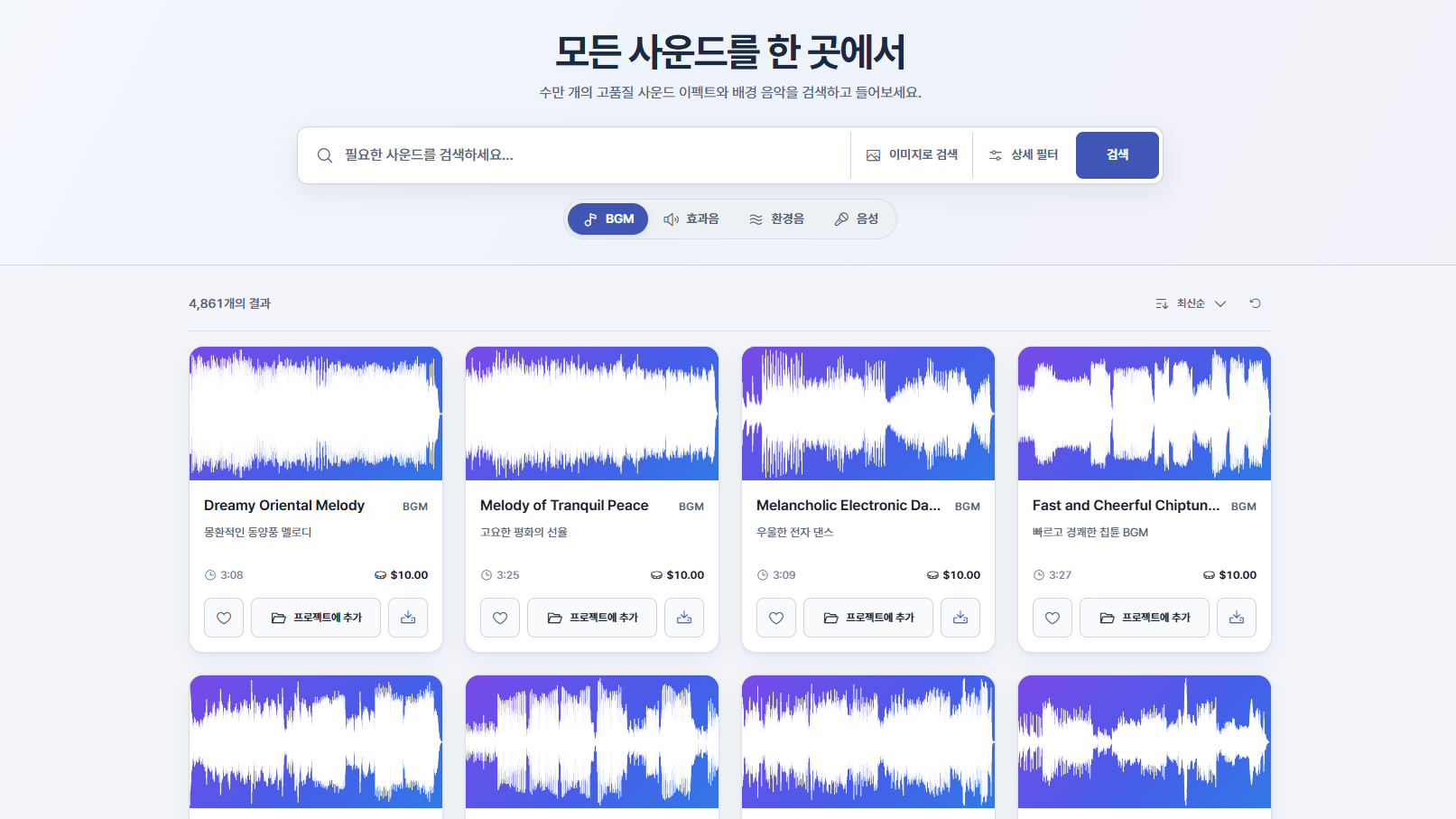
The Library is searchable and can be previewed without logging in. Choose one search method, then add only the conditions you need.
Search by text, image, or category
Use the top search bar with the method that fits your workflow. You can run a text search by clicking Search or pressing Enter.
- 1
Text search
Enter scene, mood, instrument, or sound in the search bar.
- 2
Image search
Choose a reference image from the image search icon and then run the generated text description through search.
- 3
Category search
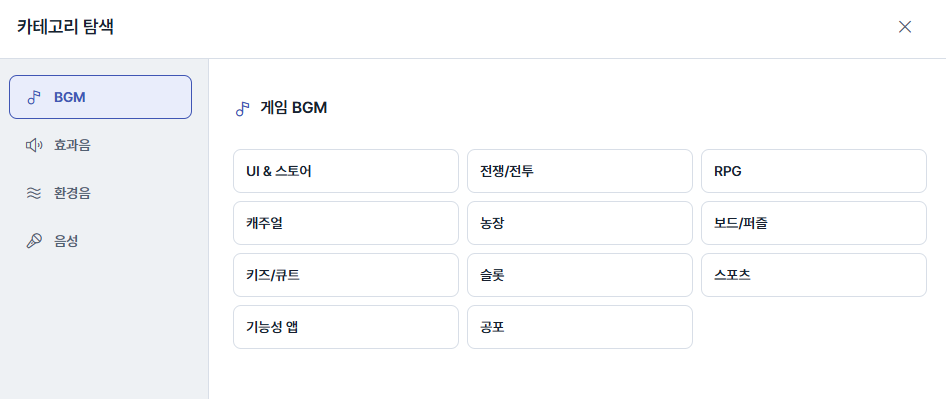
Pick BGM or SFX usage from the category icon to narrow the search target.
Apply detailed filters
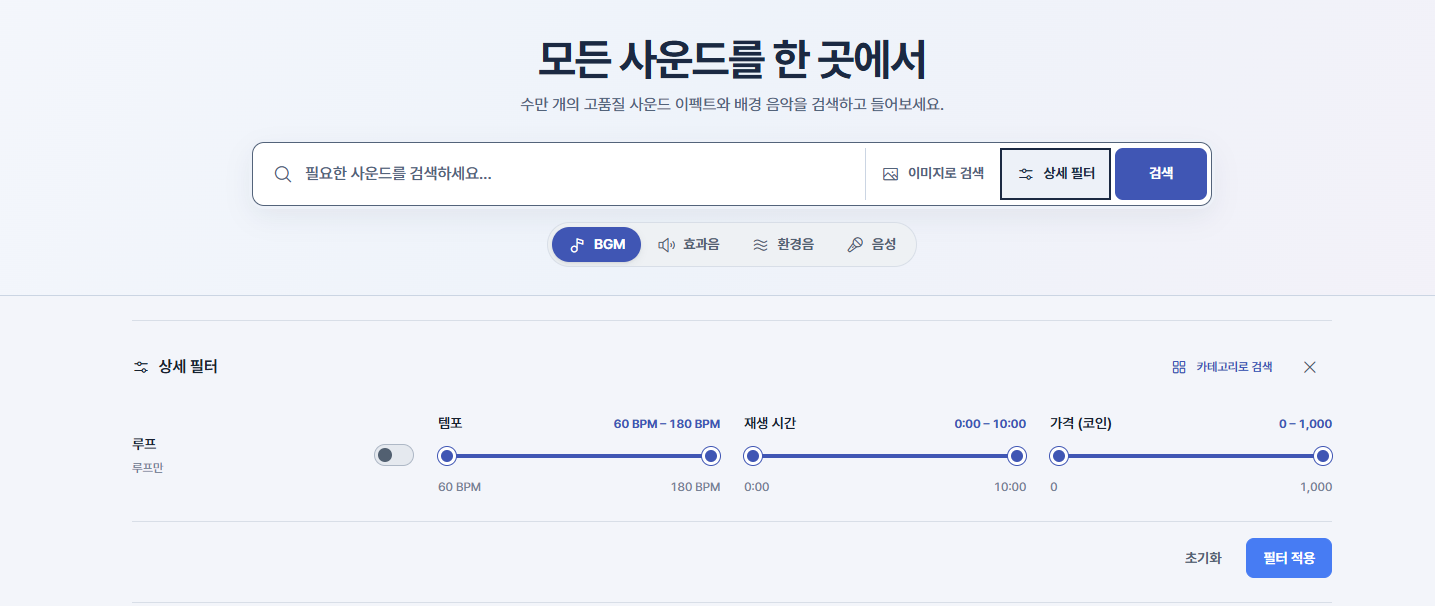
Set loop, tempo, duration and price in detailed filters. Remove individual conditions using the tags above the results, or select Reset to clear the search and all filters.
- Loop: show only sounds that can be played on repeat
- Tempo: set any BPM range between 60 and 180
- Duration: set any length between 0 seconds and 10 minutes
- Price: set any range between 0 and 1000
Sort and move through results
When no keyword is provided, you can sort by newest, popular, most liked, most downloaded, or title. If no sounds appear, shorten the search term or reset the filters.
- The default list uses page controls: first, previous, next, and last.
- Scroll down in search results to load more items automatically.
- Result cards show title, type, length, price, and play/likes/download stats.
- Image and AI search results may include a similarity score.